

MopVisualizer
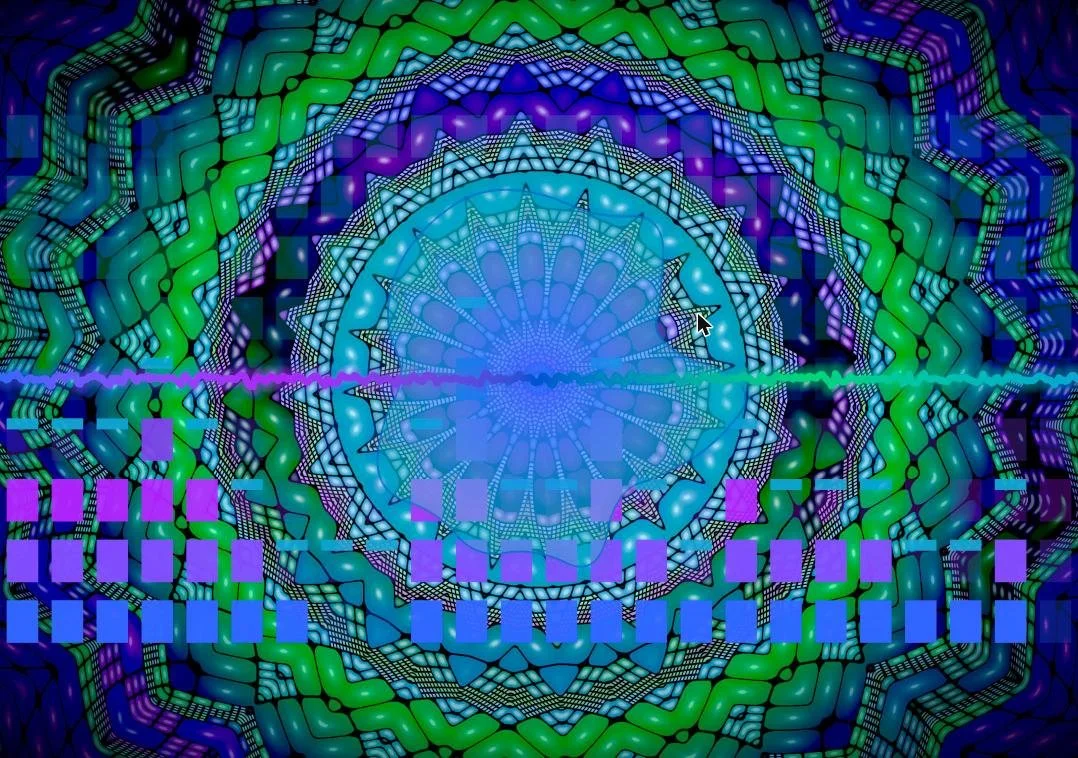
A live music visualizer that runs in Chrome. It listens to whatever is playing and turns it into layered, moving light. Each layer follows its own part of the sound.
I designed MopVisualizer and led it through Clashboard. AI agents wrote the code.
Photosensitivity warning
MopVisualizer shows flashing lights and patterns. Its pictures can flash, flicker and show bright, high-contrast patterns, and they follow the music, so nobody can say in advance what they will do.
A very small number of people may have a seizure when they see flashing lights or patterns. This can happen to people who have never had a seizure and have never been told they have epilepsy. Children and teenagers are more likely to be affected.
If you, or anyone in your family, has epilepsy or has had a seizure, talk to a doctor before using this.
Stop at once, look away and cover one eye with your hand if you feel light-headed or confused, if your vision changes, if your eyes or face twitch, if your arms or legs jerk or shake, or if you lose awareness even for a moment. See a doctor if any of this happens.
To lower the risk, use it in a well-lit room, sit well back from the screen, and do not use it when you are tired. If you show it to an audience, warn them before it starts.
Why I built it
I wanted visuals I could perform with: running on a tablet beside me, often in a dark room, driven by the sound actually in the room, and changed with a Bluetooth pedal so my hands stay free.
The visualizers I looked at each did part of that. MilkDrop-style players look great but give you little control over what each part of the picture listens to. Performance tools like Resolume and TouchDesigner are powerful, but they are desktop rigs, not something you prop up on a stand. What I wanted most was the setup side: give each layer its own frequency range, shape the sound with an EQ and a noise gate before the visuals see it, and save looks as presets I can step through as a setlist.
MopVisualizer started as a simple version of that. The current beta keeps every control from the first version and replaces how it draws, so the visuals look as good as the setup side works.
How it works
- Sound in. The app listens through the microphone, or, in Chrome on a computer, to the computer's own audio. The sound only drives the picture; the app never plays it back.
- Shaping. The signal goes through a sensitivity control, a five-band EQ and a noise gate, so room noise between songs doesn't set the picture off.
- Listening. Many times a second the app measures the sound: how loud it is, where the hits land, the bass, mids and highs, and the tempo.
- Layers. Each layer has its own frequency range. One layer can follow only the kick drum (20–95 Hz) while another follows the whole mix, so the parts of the picture move with different parts of the music.
- Drawing. Each layer draws one of 25 scenes, from bars, scopes and LED meters to tunnels, fireworks, a stained-glass ring, a flight over hills, an open sea and a spiral galaxy. Every scene runs on the graphics chip, and the layers blend into one picture with trails and glow.
- Saving. Colors, layers and settings save as presets, and presets line up into a show.
Under the hood: Expo and React Native, Skia (CanvasKit) for the drawing, the Web Audio API for the sound, served from GitHub Pages.
Tutorial
Nine steps, the first eight with a screenshot from the app running in Chrome. Tap a screenshot to see it larger.
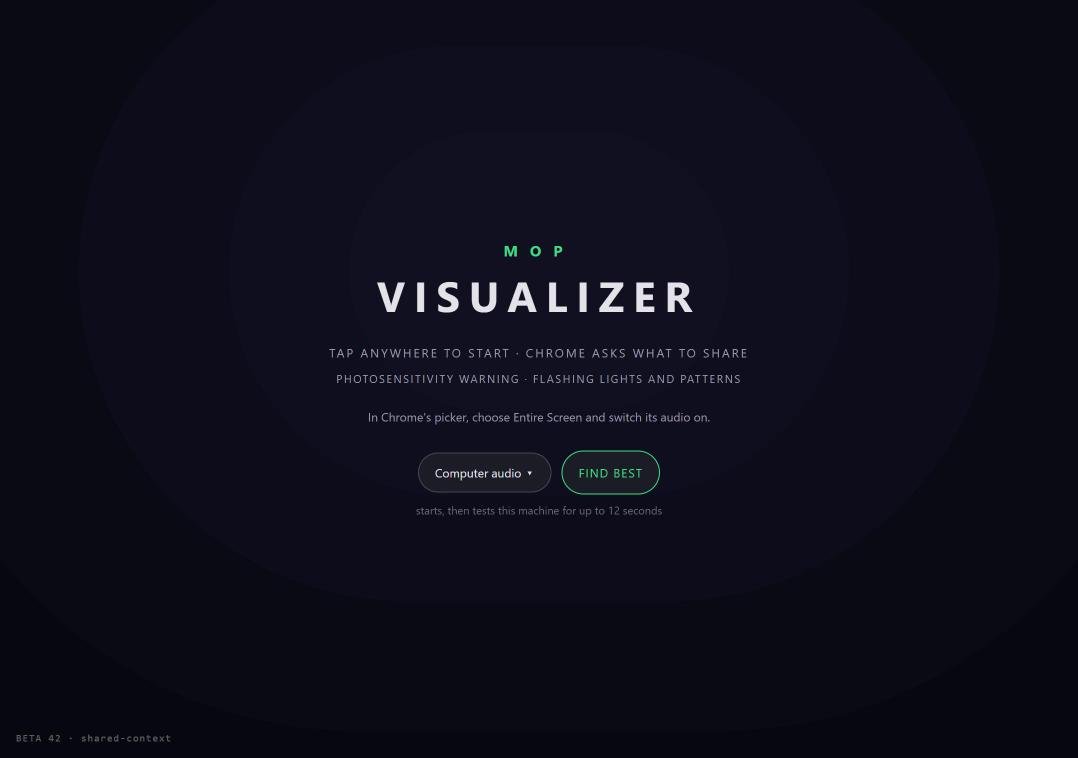
1. Start it. Open the app in Chrome. On a tablet it uses the microphone; on a computer you can pick Computer audio. Tap anywhere to start and allow the microphone, or, for computer audio, choose Entire Screen in Chrome's picker and switch its audio on. FIND BEST also tests your device for up to 12 seconds and picks the highest quality it runs smoothly.
2. Open the menu. Play some music. Tap the screen to show the controls, then tap ≡ at the top right. Tap the screen again to hide everything for the show. Here four layers run at once: a stained-glass ring on the bass, an LED meter, a soft blob and a scope line.
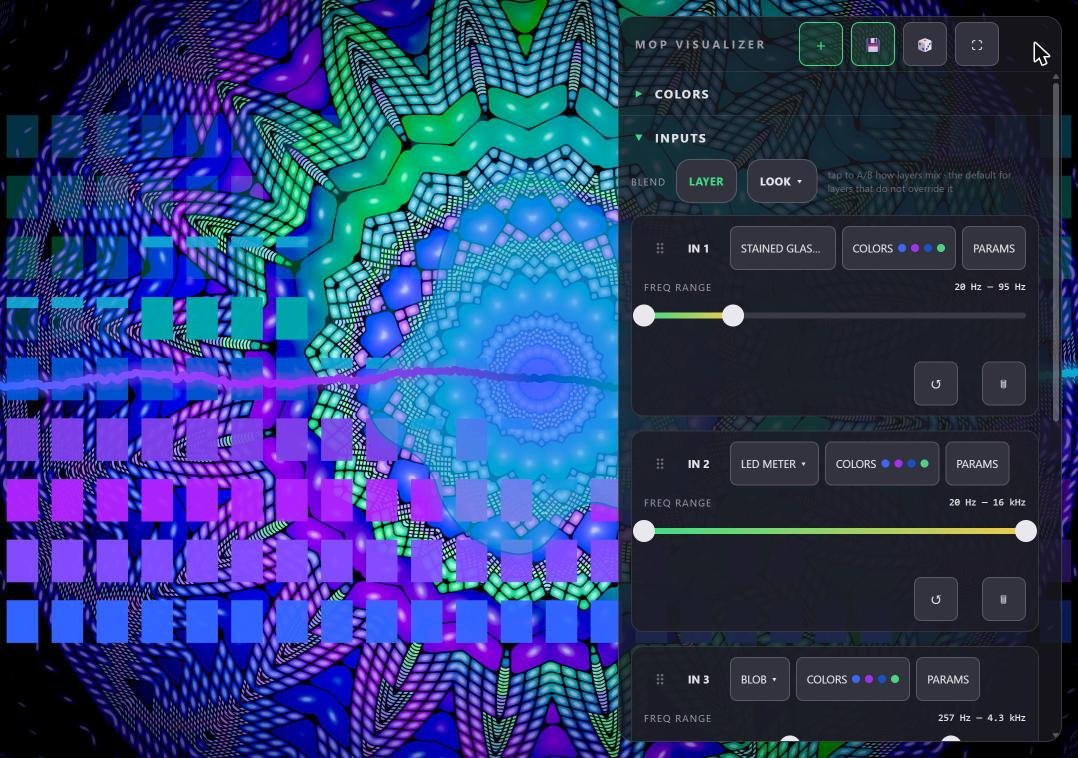
3. Set up your layers. In INPUTS, each row is a layer, drawn in order from the top. Pick its scene, its COLORS, its PARAMS, and its FREQ RANGE, the slice of the sound it listens to. Here layer 1 hears only 20–95 Hz, the kick and bass, while layer 2 hears everything. + ADD INPUT adds a layer, and dragging ⠿ reorders them.
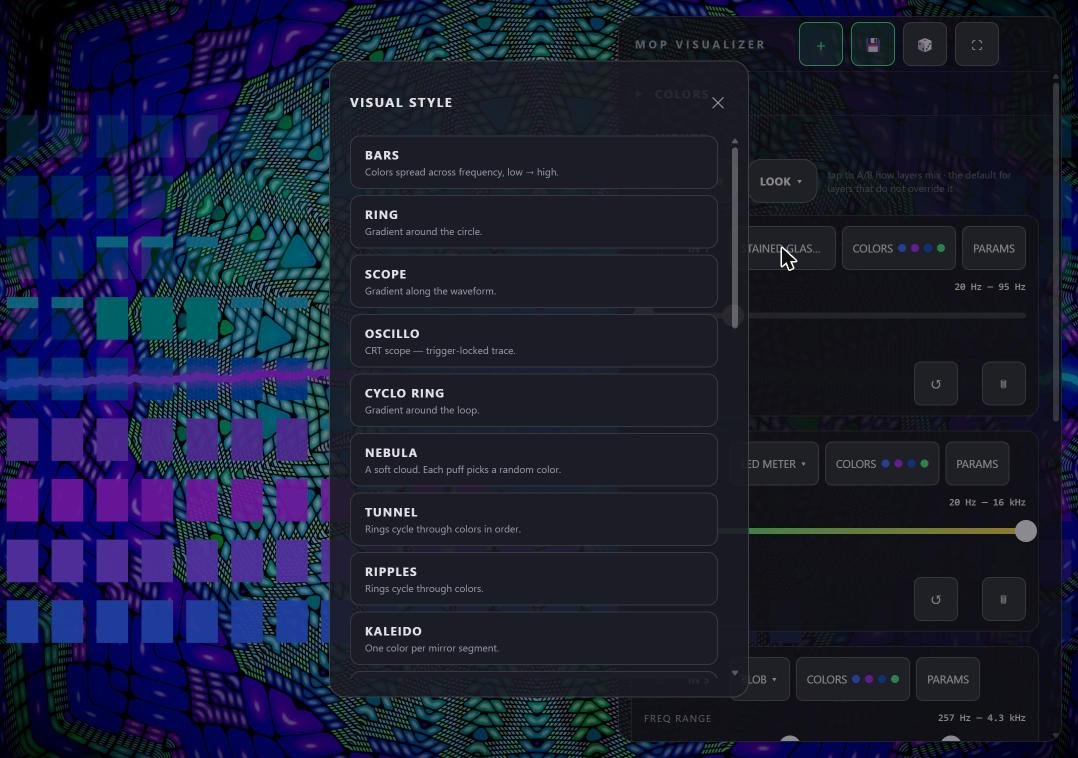
4. Pick a scene. Tap a layer's scene button to open VISUAL STYLE and choose from 25 scenes, from bars and scopes to tunnels, fireworks, an open sea and a spiral galaxy. Each one says how it uses the layer's colors.
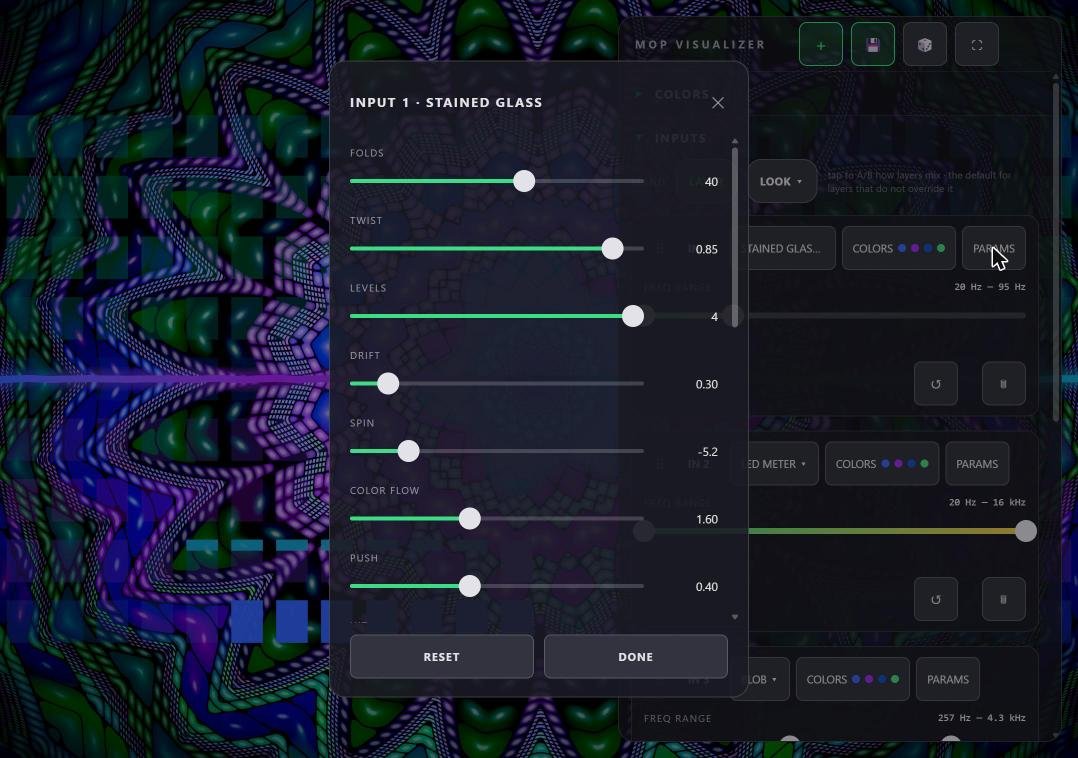
5. Shape it. PARAMS opens the scene's own settings, like STAINED GLASS's folds, twist, spin and color flow shown here. Changes show live, and RESET returns the defaults.
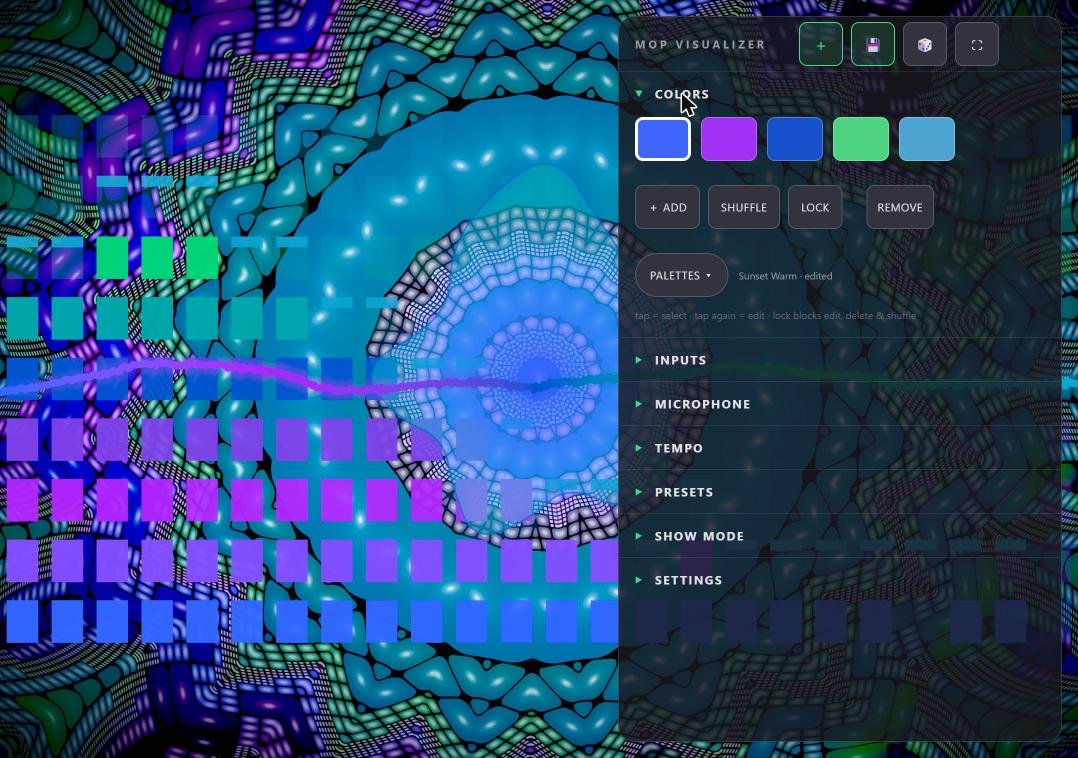
6. Choose colors. COLORS holds the shared palette. Tap a swatch to select it and tap again to edit it. + ADD, SHUFFLE, LOCK and REMOVE work on the selected one, and PALETTES loads a ready-made set. The dice at the top randomizes the look.
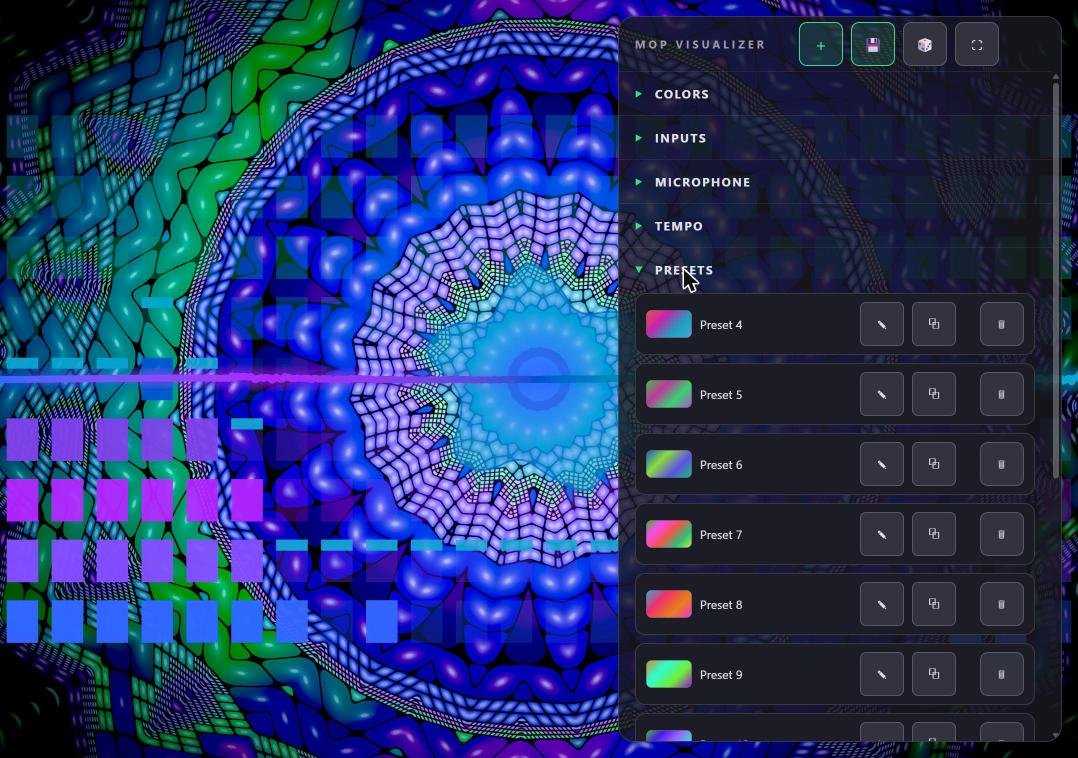
7. Save presets. Tap 💾 at the top of the menu to save the current look as a preset. PRESETS lists them, with buttons to rename, duplicate and delete. Tapping a preset fades over to it.
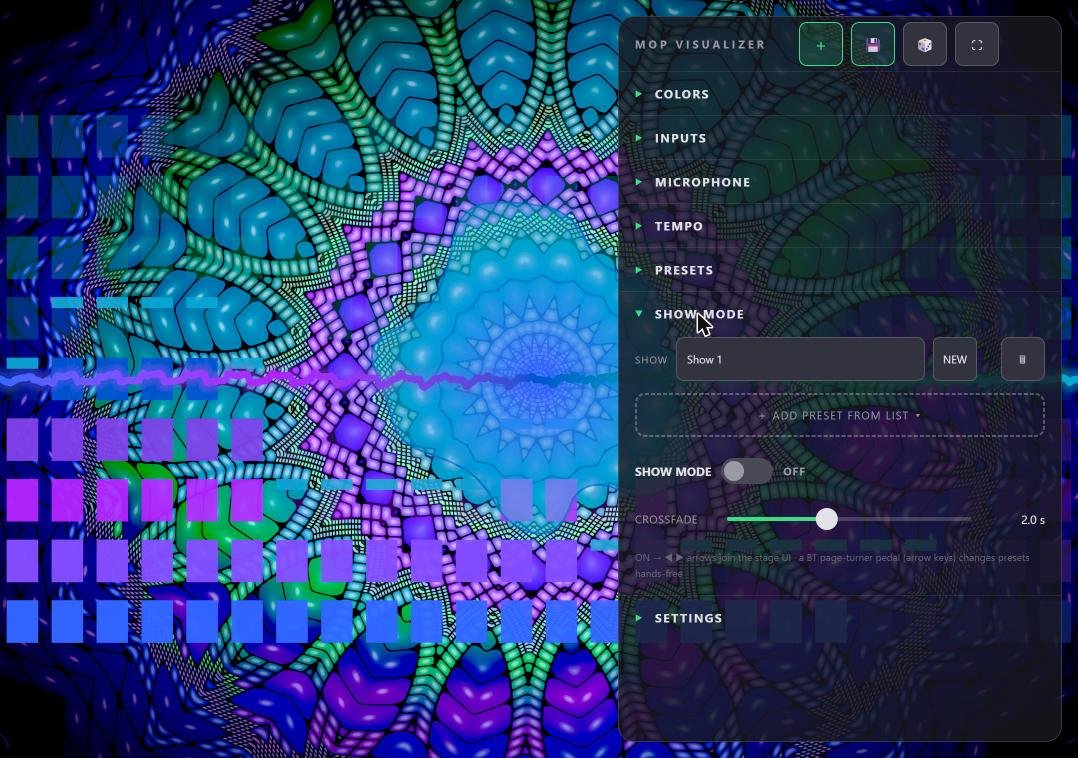
8. Build a show. SHOW MODE lines presets up in order, with a CROSSFADE time between them. Turn it on and ◀ ▶ arrows join the stage. A Bluetooth page-turner pedal, which sends arrow keys, steps through the show hands-free.
9. Go full screen
Tap ⛶ for full screen. The app keeps the screen awake while it runs.
If the microphone is blocked: in Chrome, tap ⋮ → Site settings → Microphone → Allow, then tap the screen to try again.
Moving to another device? Export your presets to a backup file in SETTINGS and import it on the other device.
Shader credits
Five scenes are adapted from shaders their authors shared on Shadertoy. MopVisualizer's versions are modified: they react to sound, take the layer's colors, and have new controls. The originals are the authors' work, and the credit is theirs.
- GLOWMARCHER, from Another day, another glowmarcher by mrange. CC0 1.0.
- MONTEREY, from Monterey wannabe (2022) by mrange. CC0 1.0.
- STAINED GLASS, from Sunday morning random results by mrange (Mårten Rånge). CC0 1.0.
- OCEAN1, from afl_ext's procedural ocean (2017) by afl_ext. MIT License.
- GALAXY, from Spiral galaxy by mrange. CC0 1.0.
Some scenes also use small, widely shared functions by Inigo Quilez (value noise, smooth minimum, 2D box distance; MIT), mercury's hg_sdf library (MIT), and ACES tone-mapping fits by Stephen Hill (via MJP's BakingLab, MIT) and Krzysztof Narkowicz (CC0 or MIT).
Shadertoy is at shadertoy.com. MopVisualizer is not affiliated with Shadertoy or with any author named here.
The full MIT License notices for afl_ext's ocean shader, MJP's BakingLab, mercury's hg_sdf and Inigo Quilez's functions are published with the app: read the license notices.